
Clubs
The Clubs module is the core operational record in Femina OS. It manages all registered Femina Hip clubs, their clubbers (members), club staff, issue activity, and geographic assignments.
Overview
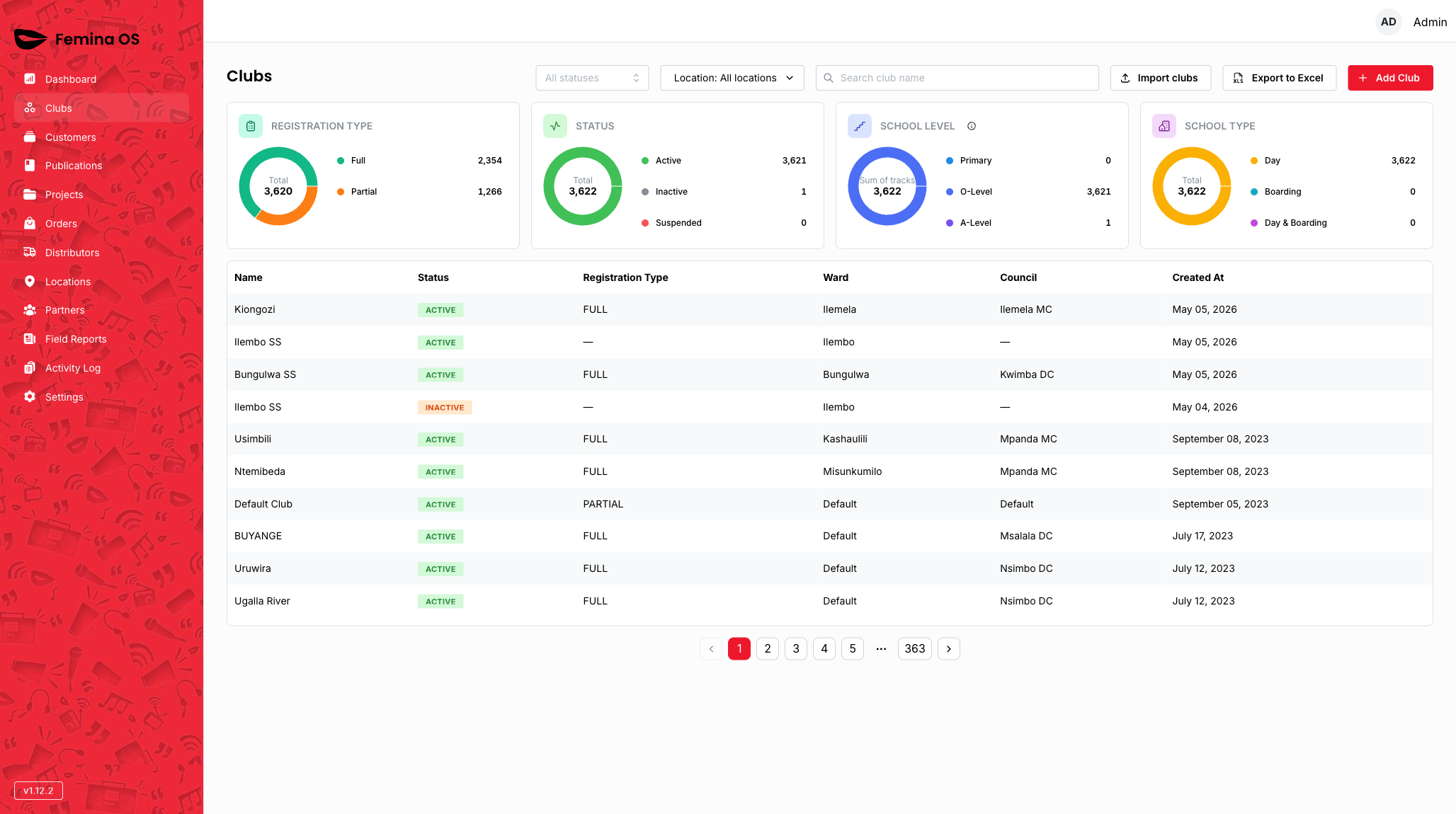
Each club is a real-world Femina Hip group based at a school or community site. Clubs are assigned to a geographic location (zone → region → district → council → ward) and have their own set of clubbers, staff, and issue distribution records.
Key Concepts
- Club — a registered Femina Hip group with a school or community assignment
- Clubber — a girl or young woman enrolled in a club
- Club staff — adults associated with the club (mentors, head of school, ward education coordinators)
- Issue activity — a record of issues (magazines) distributed at a club
- Club status — Active, Inactive, or Suspended
- Institution type — Day school or Boarding school
- Class level — Primary, O-Level, or A-Level
User Roles & Permissions
| Role | Clubs Access |
|---|---|
| Root | All (create, view, edit, deactivate, import, export) |
| Outreach Manager | All |
| M&E Coordinator | All |
| Outreach Officers | All |
| M&E Officer | Configurable |
| Mentor | All |
Features
Club List
A searchable, filterable table of all registered clubs. Columns include club name, zone, region, district, ward, meeting frequency, and status.
Filters available:
- Status (Active / Inactive / Suspended)
- Location (zone, region, district, ward)
- Search by club name
Club Detail
Clicking a club row opens a side summary panel. From there, View More Details opens the full club page with the following tabs:
- Overview — basic details and location
- Clubbers — enrolled members
- Club Staff — assigned staff and their roles
- Issue Activity — history of issue distribution events
Import & Export
- Export to Excel — download the current filtered club list as a spreadsheet
- Import — bulk-create clubs from a CSV/Excel file using the import template
Workflows
Registering a New Club
- Navigate to Clubs in the sidebar.
- Click + Add Club in the top-right corner.
- Step 1 — Basic details: Enter the club name, meeting frequency (per week), meeting duration (minutes), and description. Click Next.
- Step 2 — Location: Select the zone, region, district, and ward. Click Next.
- Step 3 — Institution details: Choose the institution type (Day/Boarding), class level (Primary/O-Level/A-Level), and population. Click Save.
Adding a Clubber
- Navigate to Clubs and click the club row to open the summary panel.
- Click View More Details.
- Go to the Clubbers tab.
- Click + Add Clubber and fill in the clubber's name, age, and other details.
- Click Save.
Adding Club Staff
- Open the club detail page.
- Go to the Club Staff tab.
- Click + Add in the Staff List section.
- Enter the staff member's name, phone, sex, and position (Mentor, Head of School, or Ward Education Coordinator).
- Click Save.
Recording Issue Activity
- Open the club detail page.
- Go to the Issue Activity tab.
- Click + Add Activity.
- Select the issue distributed and enter the date.
- Click Save.
Searching and Filtering Clubs
From the Clubs list page:
- Use the Status dropdown to filter by Active, Inactive, or Suspended.
- Use the Location dropdown to filter by geographic area.
- Type in the Search club name box for a quick lookup.
Exporting Club Data
- Navigate to Clubs.
- Apply any desired filters.
- Click Export to Excel to download the filtered list.
Deactivating a Club
- Navigate to Clubs and open the club record.
- Click Edit and change the status to Inactive or Suspended.
- Click Save.
FAQ
How is a club's location determined? Location is set during club creation by selecting zone, region, district, and ward from the system's location hierarchy. Only a Root user can manage the available locations — see Locations.
Can a clubber be in more than one club? No. Each clubber record belongs to a single club.
What is the difference between a club's population and the clubber count? Population is the total eligible students at the institution. The clubber count is the number actually enrolled in the Femina Hip club.