
Appearance
Clubs
The Clubs module is the register of Femina Hip club customers (schools and community sites). From the list you can filter and search, queue spreadsheet imports and exports, open a details drawer for a quick read, or jump into the full club workspace for staff, clubbers, and class migration.
Purpose and outcomes
- Maintain an accurate, searchable list of clubs with geography, status, and registration metadata.
- Bulk import clubs from Excel (background job + progress panel) and export the current filter set to Excel (queued job).
- Open any club to manage Customer Staff, Clubbers (including a clubber detail page), and Migration (class-level history for that club).
- Activate / deactivate a club from the detail header and edit core attributes via the club edit wizard.
Who it is for
Permissions are split across Club, Club Staff, and Clubber modules. A user might browse clubs but need separate rights to list staff or clubbers. Use Settings → Role and Permissions to see your organisation’s mapping.
Scope
- In scope: Clubs list page, import/export jobs UI, Club details drawer, New club wizard, Edit club flow, Customer staff tab, Clubbers tab (including clubber detail), Migration tab, parallel header and summary layout panels.
- Not in current club workspace tabs: Issue-level distribution history lives under Publications and Orders, not as a separate tab on the club record in this release.
Key concepts
- Club (customer) — a Femina Hip site record; the app identifies each club with an internal customer ID.
- Customer Staff — adults linked to the club (mentors, school leadership, etc.).
- Clubbers — enrolled members; optional demographics and class history on the detail page.
- Migration — per-club view of class migration jobs and history (paired with organisation-wide migrations in Settings when used).
Clubs list page
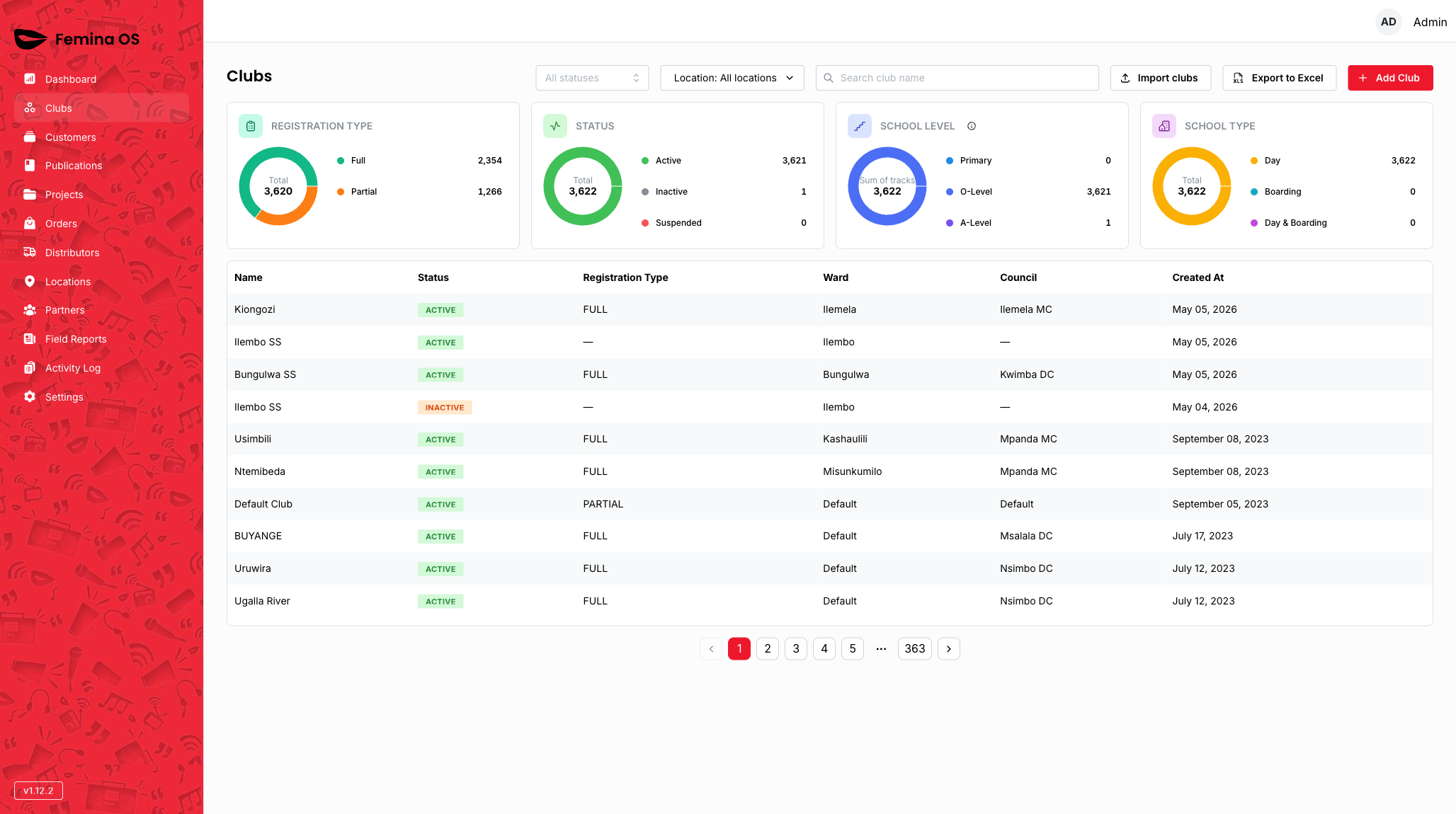
Screenshot: Full-width layout with title Clubs, filter row (status, location, search, import, export, add), stats cards, import/export job panels above the table, paginated table, and pagination footer.
Filters and search
- Status — filter by club lifecycle status.
- Location — hierarchical location filter (depends on Locations data).
- Search — quick text search on club name.
- Additional filters (registration type, level, school type) may appear when your deployment exposes them in the list or in the page address.
Stats area
Screenshot: Summary metrics above the table (counts and breakdowns implemented for your build).
Import jobs panel
Screenshot: Panel listing recent club import background jobs with status; appears when jobs exist or after queueing import.
Export jobs panel
Screenshot: Panel tracking Excel export jobs triggered from Export to Excel; shows progress/outcome.
Club row and details drawer
Clicking a row opens the club details drawer (not a full-page navigation).

Screenshot: Right-hand drawer with club summary cards (location, type, dates, staff snippet) and View More Details button.
- View More Details — opens the club workspace on the Customer staff tab (default landing tab).
Import clubs
Import clubs opens a dialog (overlay window) titled Import clubs (requires Club CREATE).
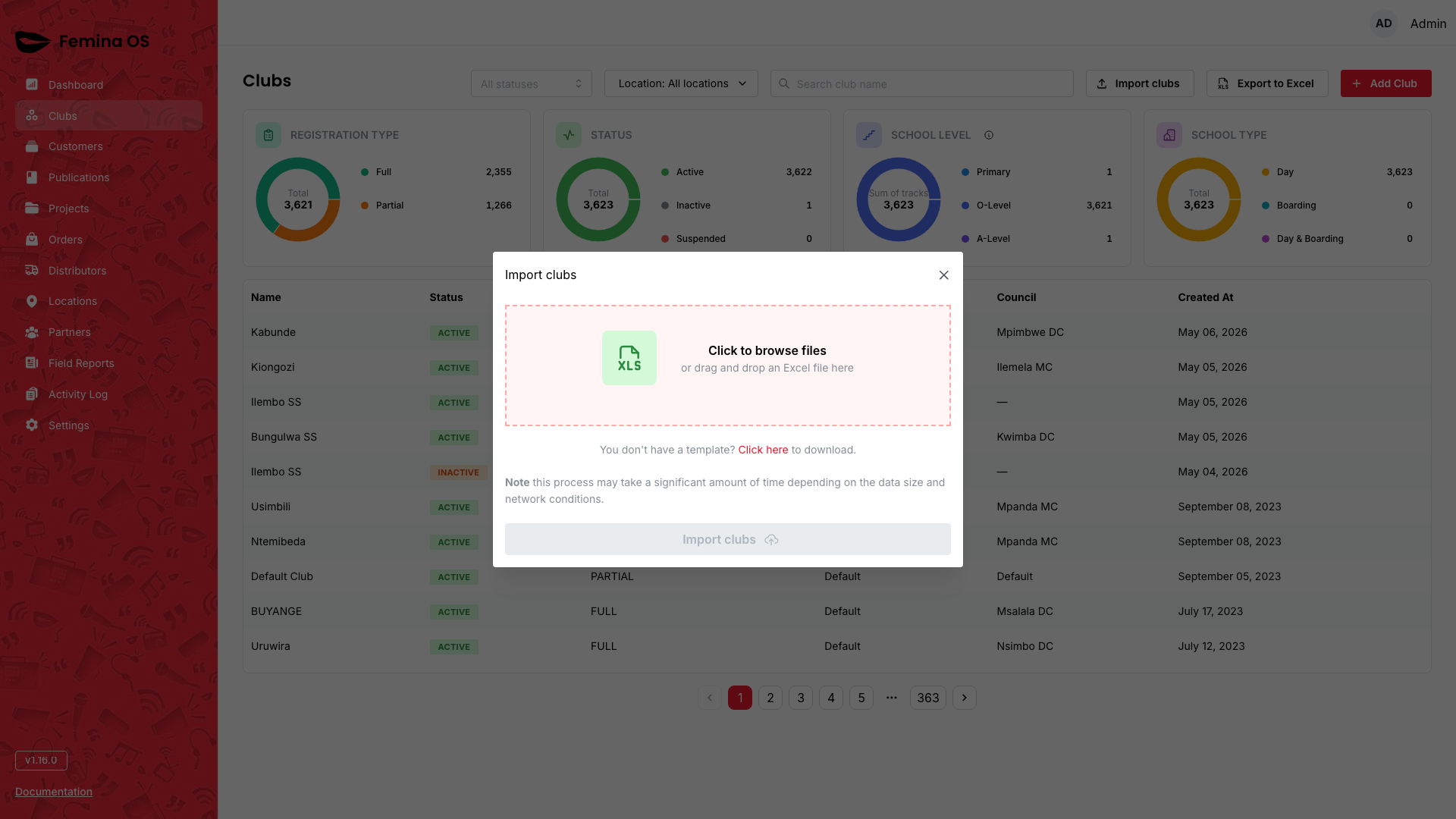
Screenshot: Centered dialog with Excel drop zone, selected file name, link to download template (
feminaos-clubber-template.xlsxfrom the app’s static resources), note about duration, and red Import clubs primary button.
- Template link — browser download of the spreadsheet template.
- Dropzone —
.xlsx/.xls, max 8 MB; invalid type shows inline reject state. - Primary action — submits the file to the club import service; success queues a job and shows a toast; the dialog can close while processing continues in Import jobs panel.
- Cancel — upper-right close; disabled while uploading per implementation.
Export to Excel
Export to Excel queues an export using current list filters (search, status, location, etc.).
Screenshot (toast): “Export queued” style notification after success.
- Track completion in Export jobs panel; download when ready (exact UX per build).
Add Club
Add Club (with Club CREATE) opens the New club flow — a multi-step registration form (basic details, geography, institution configuration, tags, etc.).
Screenshot: First step of the club wizard with Next / Back and final Save.
Edit club
From the club workspace header, Edit Details opens the wizard in edit mode for the same club.
Club workspace
Layout loads:
- Header — top bar with club name, Deactivate/Activate toggle, and Edit Details.
- Tabs — Customer Staff, Clubbers, Migration.
- Main column — tab content.
- Summary panel — compact club summary fixed on the right on wide screens (desktop).

Screenshot: Club title row with Activate/Deactivate and Edit Details.
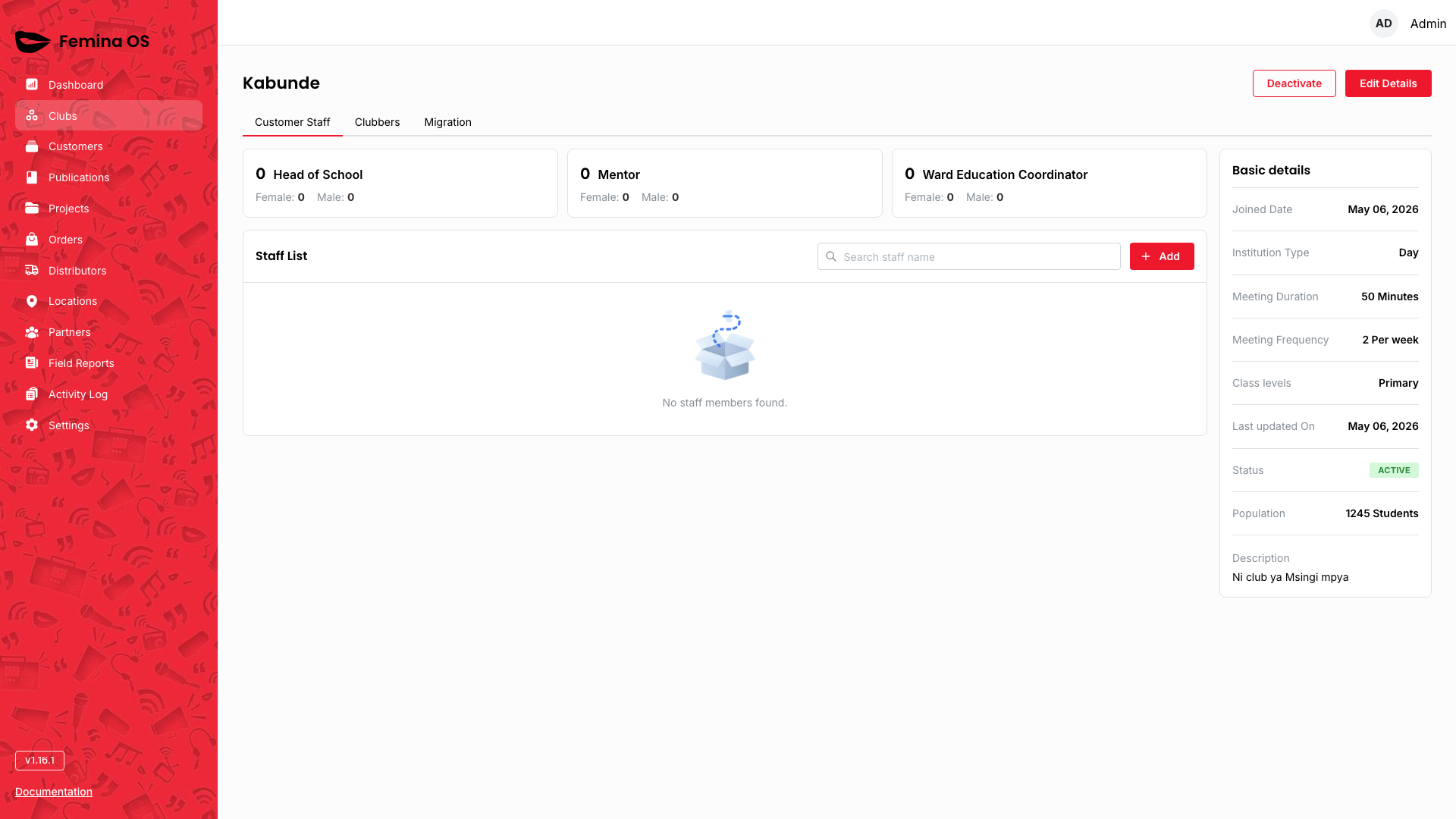
Screenshot: Right column basic details panel visible beside the active tab.
Deactivate / Activate
Header button toggles club status immediately (no separate confirmation dialog—outcome is a toast).
Screenshot: Header showing Deactivate for an active club (or Activate when inactive).
Tab: Customer Staff
Requires Club Staff LIST.
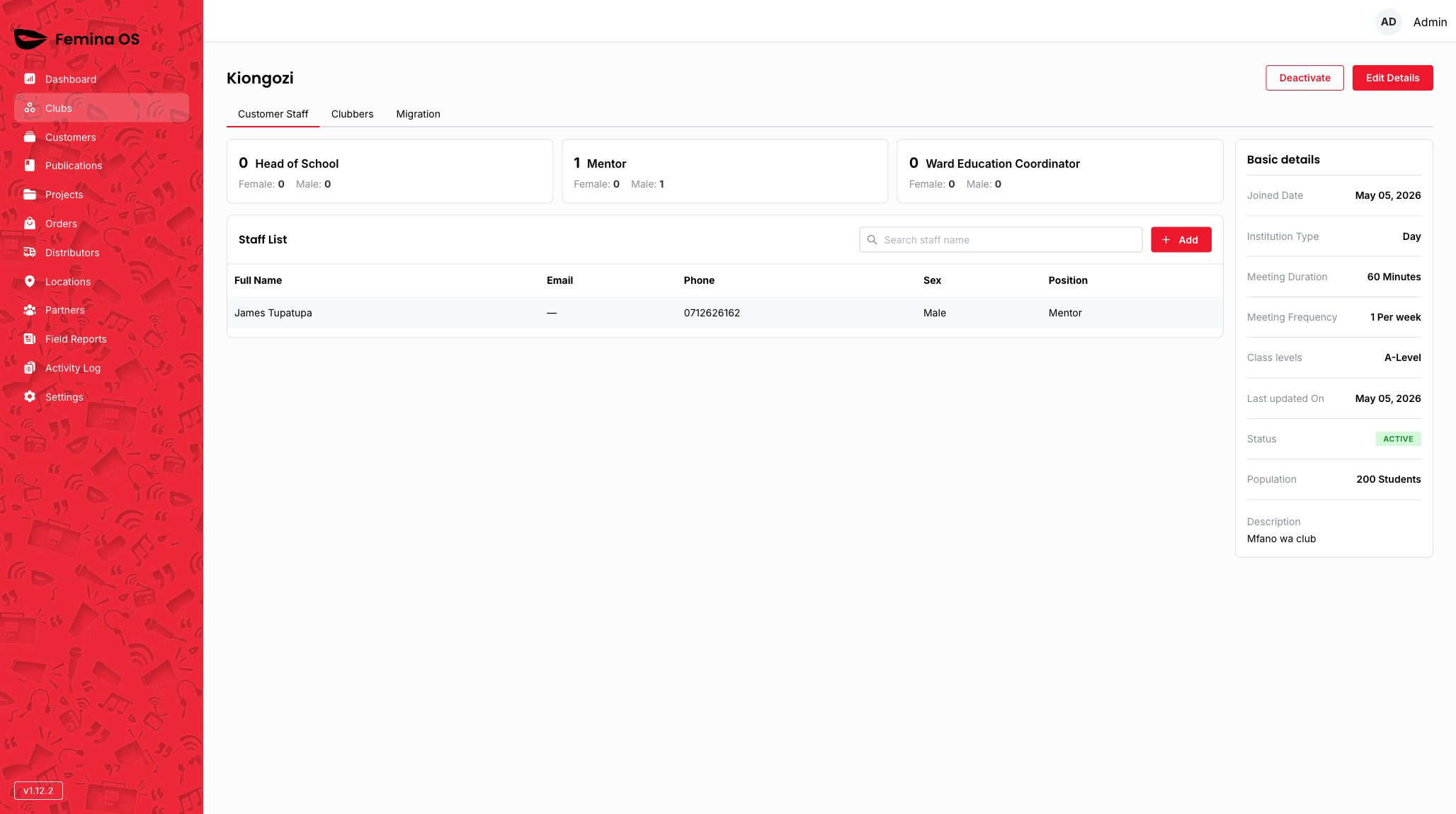
Screenshot: Paper card “Staff List”, search, Add button, staff table.
- Add — opens the Add staff page with the full-page staff form.
Screenshot: Staff create form (name, phone, sex, position, etc.) with Save.
- Row actions open a staff details drawer with read/update and possible delete (confirm whether a confirmation dialog appears in your build).
Screenshot: Drawer with staff detail and edit entry point.
- Edit — opens the Update staff page for the selected staff member.
Tab: Clubbers
Requires Clubber LIST.
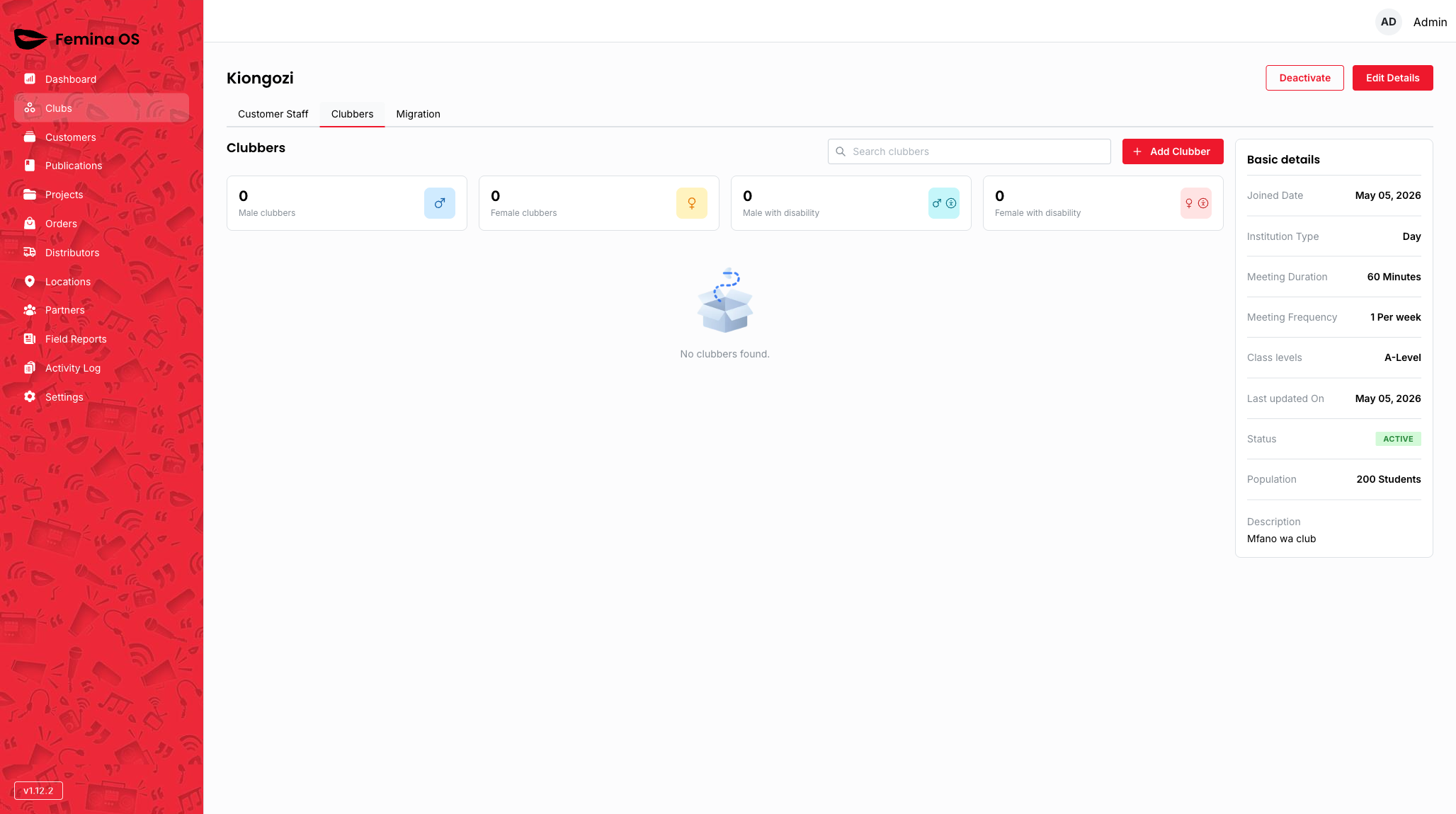
Screenshot: Clubbers table with demographics strip if present; add/edit flows per permissions.
- Clubber detail — full page for one clubber with class history and row actions (edit and transitions may open dialogs—capture what your build shows).
Screenshot: Clubber detail page with back link to list.
Tab: Migration
Requires Clubber READ (server check on page).
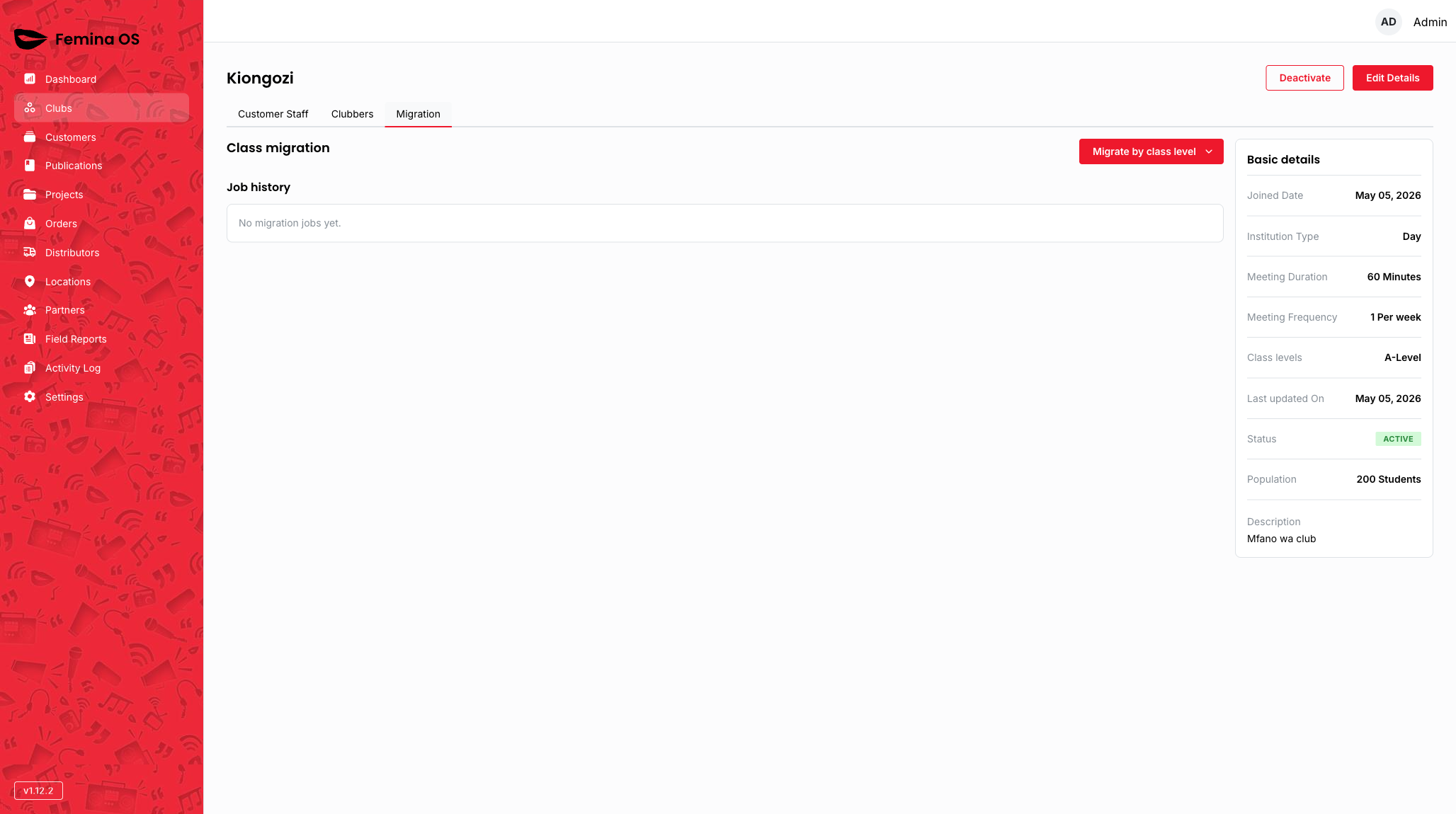
Screenshot: Class migration screen with job list and history for this club.
Workflows
Quick review from the list
- Open Clubs.
- Click a row → review the details drawer.
- Click View More Details to enter the workspace.
Register a club
- Click Add Club → complete the registration steps on the New club page.
- Save; locate the club via search on the list.
Import many clubs
- Click Import clubs.
- In the dialog, download the template if needed; prepare Excel.
- Drop/select file → Import clubs.
- Watch Import jobs for completion/errors.
Export filtered clubs
- Apply filters and search.
- Click Export to Excel.
- Monitor Export jobs; download when the job completes.
Add staff to a club
- Open the club workspace → Customer Staff.
- Add → fill the staff form on the create page → Save.
Add or review clubbers
- Open Clubbers tab.
- Use list actions to add or open a clubber row.
- On clubber detail, review class history and use actions (dialogs) as permitted.
User roles and permissions
| Area | Permission hints |
|---|---|
| List clubs / drawer | Club LIST (and READ for deep pages) |
| Create club / import | Club CREATE |
| Export | Club export permission as configured for Export button visibility |
| Staff tab | Club Staff LIST; create/update need respective actions |
| Clubbers tab | Clubber LIST; detail may require READ |
| Migration tab | Clubber READ |
Replace static role-name tables with the above module/action language unless your organisation publishes a fixed matrix.
FAQ
Why does clicking a row open a drawer instead of the full page?
Quick triage pattern: drawer first, explicit View More Details for deep work.
Does the import template name mention “clubber”?
The bundled template filename in the app may reference clubbers; the Import clubs dialog still submits to the club import service—follow your administrator’s instructions for which template to use for which job.